Custom REST Providers
Connect any AI provider with a REST API to your organization — name, base URL, and key. The platform detects the format, discovers the models, and adds them as org miners.
The BYOK panel covers the built-in providers, but your organization is not limited to that list. The Add a provider form accepts any AI provider that exposes a REST API — Together AI, Fireworks, OpenRouter, a self-hosted vLLM or TGI gateway, or an internal inference service. No provider names are hardcoded anywhere: a provider is just a display name, a base URL, and an API key.
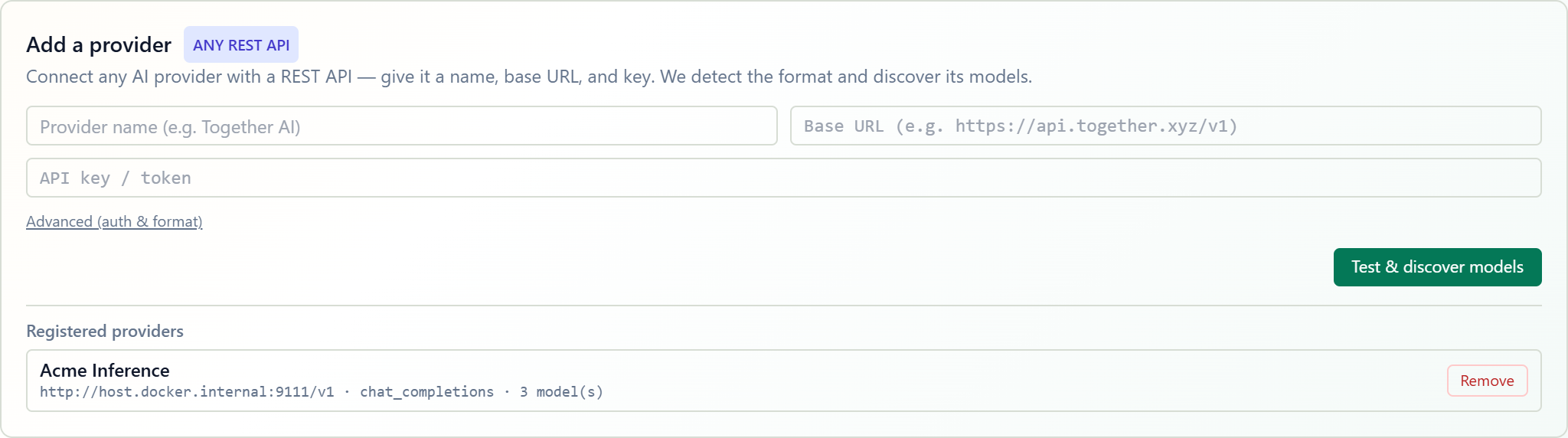
Open the BYOK panel and find “Add a provider”
Navigate to Organization → Settings → API Keys (BYOK). You need an Owner or Admin role; viewers see the panel read-only. Below the built-in provider keys you'll find the Add a provider card tagged Any REST API.

Enter name, base URL, and API key
Fill in three fields: a provider name (e.g. Together AI), the base URL of the API (e.g. https://api.together.xyz/v1), and the API key. The key is encrypted at rest and never displayed again after saving.
Normally you can leave detection to the platform. If the endpoint is unusual, open Advanced (auth & format) and pick the auth scheme (Bearer token, custom header like x-api-key, or query parameter) and the API format (chat completions, messages, or generate content) explicitly.
Test & discover models
Click Test & discover models. The backend probes the endpoint, auto-detects the auth scheme and wire format, and lists the models the provider reports. The detected format and auth are shown above the model list so you can confirm the endpoint was understood correctly.
If the provider has no model-listing endpoint, you'll still get a "Connected" notice — type the model names manually, one per line.
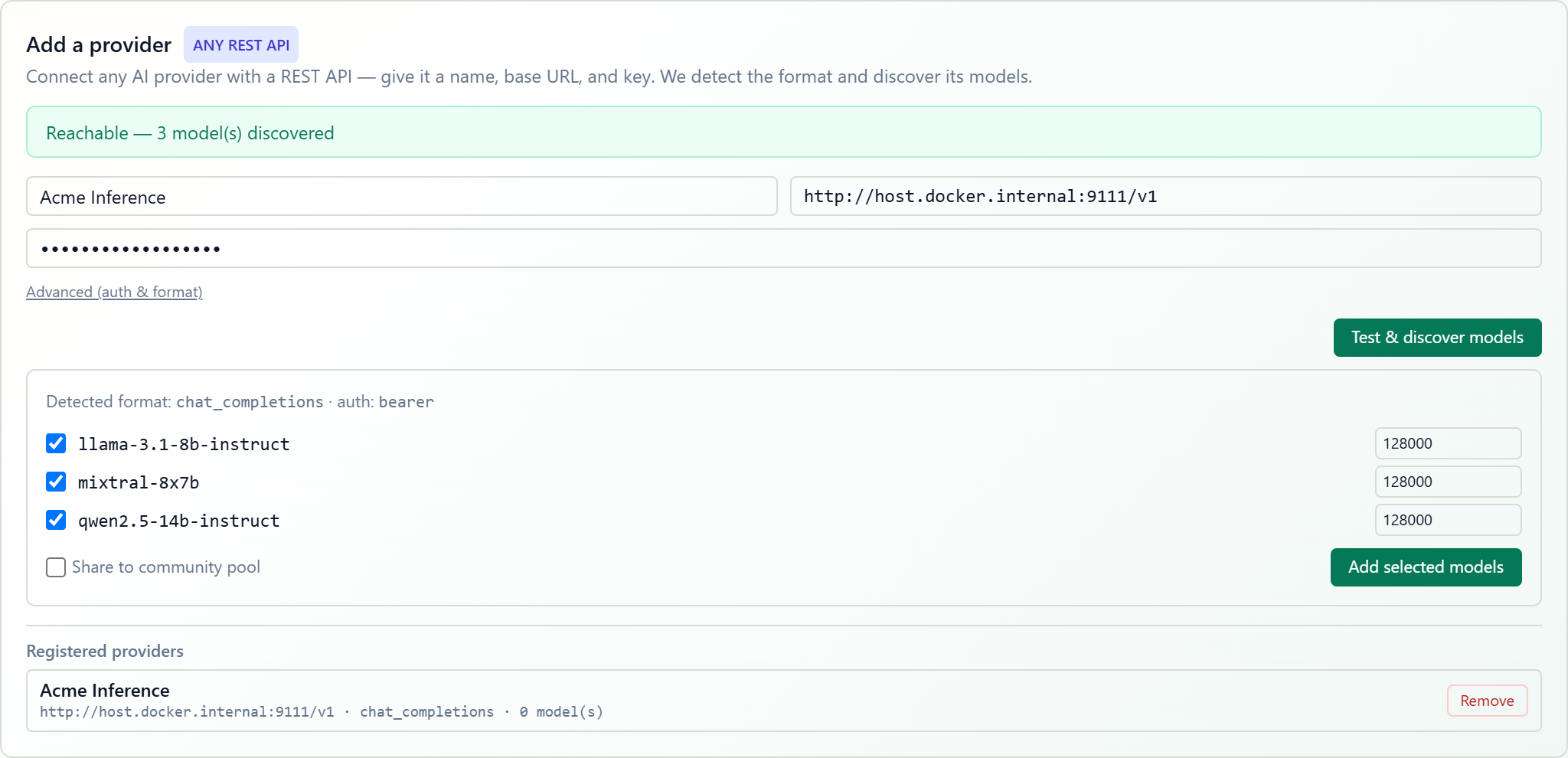
Select models and add them as org miners
Check the models you want, optionally adjust each model's context window (token budget limits are derived from it) and enter what the model costs you per 1M tokens (input / output), and click Add selected models. Each model becomes an organization-scoped miner under your new provider's custom: slug and immediately joins your org's miner pool — model selection, billing, and usage metering treat it like any other BYOK miner.
By default the models are visible only to your organization. Tick Share to community pool if you want other tenants to be able to use them too.
Verify and manage registered providers
Registered providers appear at the bottom of the card with their base URL, detected format, and model count. Start a new chat in your organization — the added models are now eligible for selection, and they respect your org's miner-pool policy (including BYOK-only mode, since custom-provider miners count as BYOK miners). Click Pricing to add or change each model's price later (clear both fields to remove it), and Remove to delete a provider; its models leave the pool with it.