Setting Up a Miner
Download, configure, and register a miner node to contribute compute to the Elis network.
BACKEND_URL=https://api.tryelisai.com. Self-hosted / on-prem / dedicated-only: point BACKEND_URL at your own API origin (for example http://localhost:8000) and use an organization registration token from the target cluster. Never put a path like /api on the URL — only the scheme + host (and port if needed).Generate a registration token (optional)
Open the Miners page in the dashboard and click Add Miner. Copy the registration token if you want this worker reserved to your account before you paste the pairing key. You can still enroll without it; the token only helps prevent someone else from validating the same pairing key first.
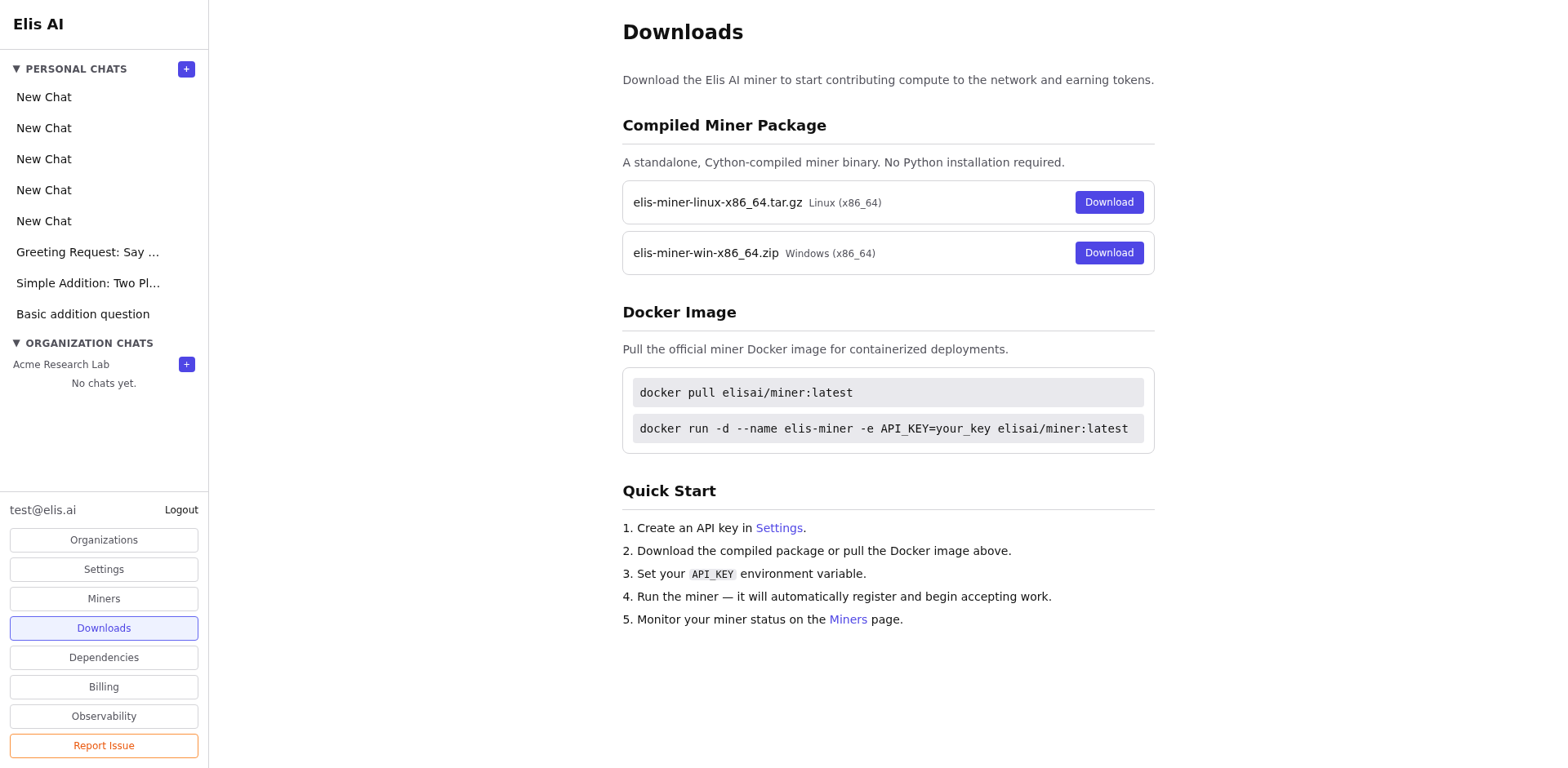
Download the miner package
Go to Downloads and choose the Linux Docker image tarball or the Windows zip. The Windows package includes app.py, run.bat, and.env.template when shipped from this product build.
Configure environment variables
Copy .env.template to .env and set at least:
BACKEND_URL— API origin:https://api.tryelisai.comfor production, or your self-hosted base URL.MINER_BACKEND—openai,ollama, orstub.MODEL_NAME— must match a model in the Elis catalog (unsupported names are rejected at enroll).OPENAI_API_KEY— required whenMINER_BACKEND=openai(your key; used only on your machine).OPENAI_BASE_URL— optional; for OpenAI-compatible gateways.OLLAMA_HOST— when using Ollama (defaulthttp://localhost:11434).MINER_REGISTRATION_TOKEN— optional; from the Add Miner modal.MINER_CALLBACK_URL— optional; public URL of this miner (e.g.https://your-host:8080) if the Elis backend can reach you for HTTP dispatch.WORKER_ID— friendly name (defaults to hostname).MINER_STATE_DIR— optional path to persist miner id + pairing key (Docker image defaults to/var/lib/elis-miner— use a volume).PORT— listen port (default8080).
OPENAI_MODEL is a legacy alias; prefer MODEL_NAME.
MINER_ENROLLMENT_SECRET is a server-side operator secret on the Elis backend. As an external miner operator you do not set it in your .env; use MINER_REGISTRATION_TOKEN from your account when you want a reservation.
Option A — Ollama (Local Models)
Ollama runs open-weight models locally — your data never leaves your machine.
1. Install Ollama
Download from ollama.com/download (macOS, Linux, Windows), then verify:
ollama --version
curl http://localhost:11434    # "Ollama is running"
2. Pull a model
# Pick one that fits your GPU VRAM
ollama pull llama3.1:8b        # ~5 GB
ollama pull deepseek-r1:14b    # ~9 GB
ollama pull phi4-mini           # ~2.5 GB
ollama pull qwen2.5:0.5b        # ~0.5 GB

ollama list                    # confirm it appears
3. Set your .env
MINER_BACKEND=ollama
MODEL_NAME=llama3.1:8b         # must match ollama list AND the Elis catalog
OLLAMA_HOST=http://localhost:11434
Docker? Use OLLAMA_HOST=http://host.docker.internal:11434 on macOS/Windows, or --network host on Linux.
Browse all supported models at ollama.com/library.
Option B — OpenAI API (Cloud Models)
No local GPU required. Get an API key from platform.openai.com.
MINER_BACKEND=openai
MODEL_NAME=gpt-5-mini          # must match the Elis catalog
OPENAI_API_KEY=sk-...           # your key — stays on your machine

# Optional: OpenAI-compatible proxy (Azure OpenAI, LiteLLM, etc.)
# OPENAI_BASE_URL=https://my-proxy.example.com/v1
Reasoning-class models (gpt-5.x, o-series) automatically use the reasoning parameter instead of temperature.
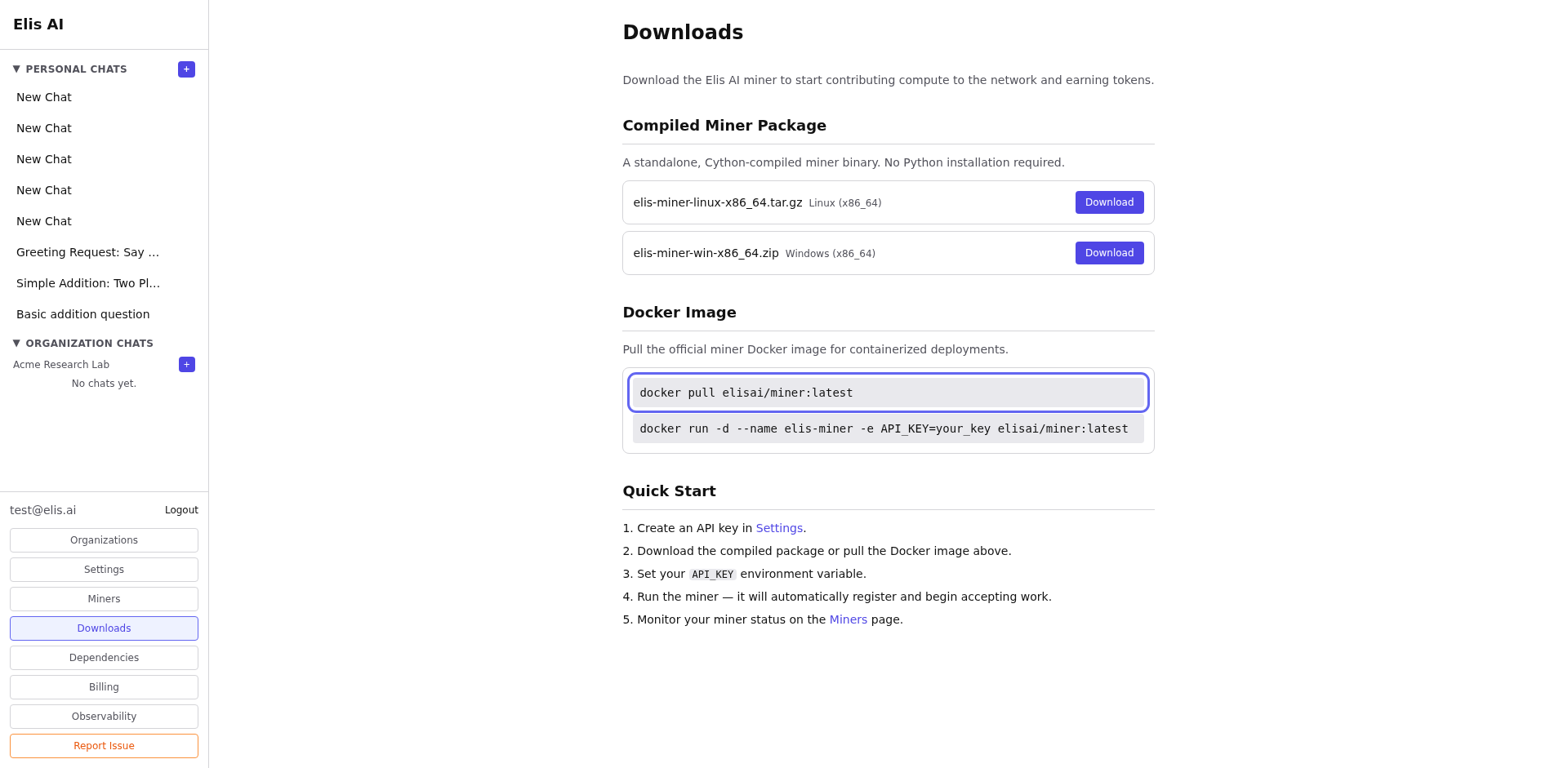
Start the miner
Windows: double-click run.bat. It creates a virtual environment and installs dependencies on first run.
Linux / Docker: load the image, publish port 8080, and persist state (recommended):
docker load < elis-miner-linux-x86_64.tar.gz

docker run -d --name elis-miner \
  --env-file .env \
  -p 8080:8080 \
  -v elis-miner-state:/var/lib/elis-miner \
  elis-miner:latest
Add --gpus all when your stack supports NVIDIA Container Toolkit and you run GPU-backed models.
On startup the miner enrolls, validates MODEL_NAME, prints a pairing key, and opens a WebSocket to the backend for heartbeats and jobs. Until you paste that key in the dashboard, the miner stays in an awaiting-validation state and will not receive paid traffic.
Validate pairing in the dashboard
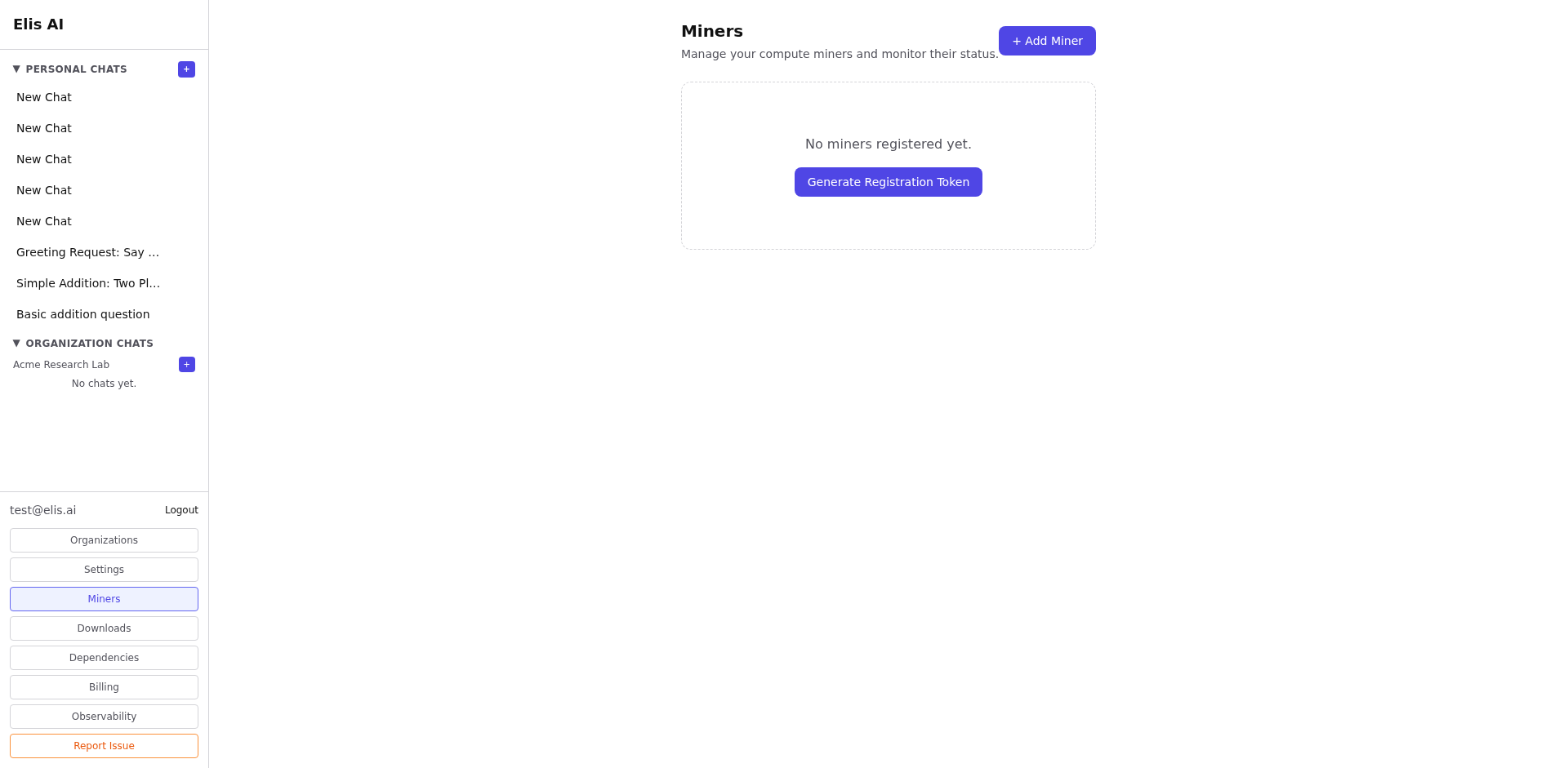
Return to Miners, find the pending worker, and paste the printed pairing key into the validation field. After validation, the miner appears in your list with model, status, and heartbeat — see Managing Miners.
/var/lib/elis-miner in Docker so the same miner identity survives upgrades and restarts. For more context, see the Miners section in Documentation.