Installing the On-Prem Platform
Buy the annual on-prem license, download the Docker bundle, initialize the deployment, and activate the onsite installation with a request-code based license flow.
Purchase the on-prem license in Billing
Open Billing, choose the target organization, and set the number of seat blocks. Each block maps to your licensed user capacity.
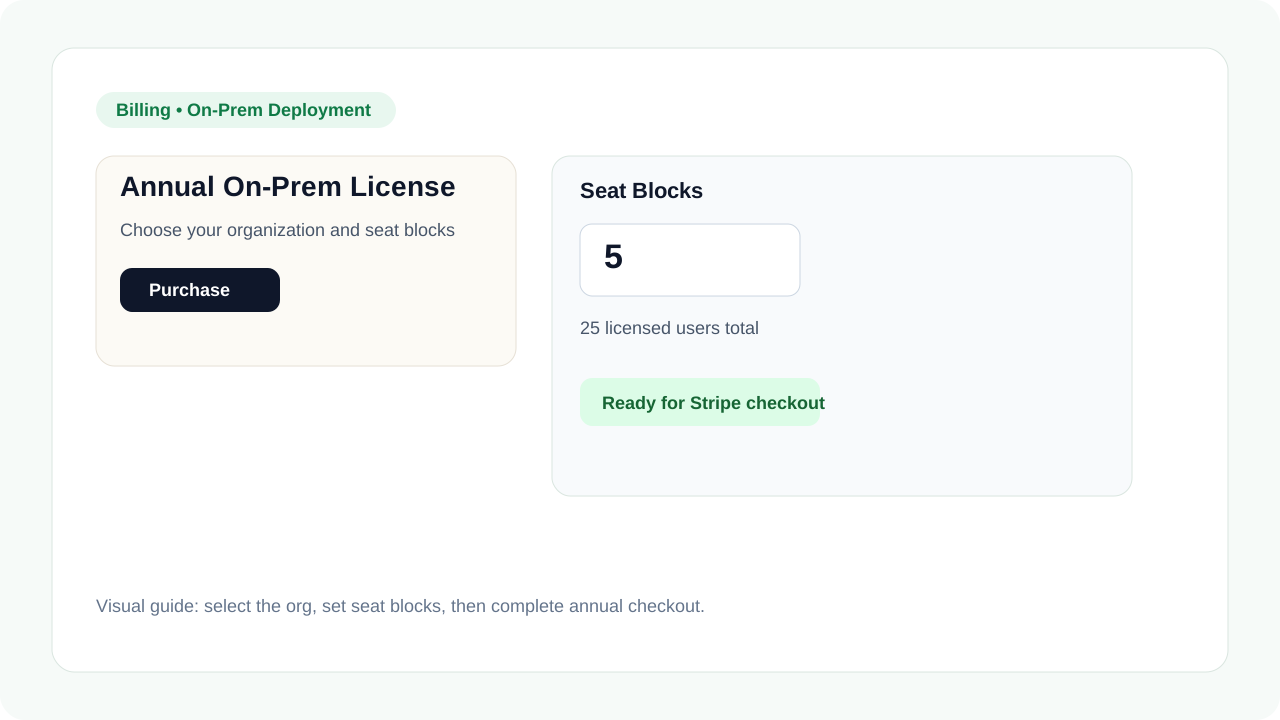
Complete checkout and download the Docker bundle
After payment, Billing unlocks the secure bundle download. Move the archive to the install host before starting the onsite setup.
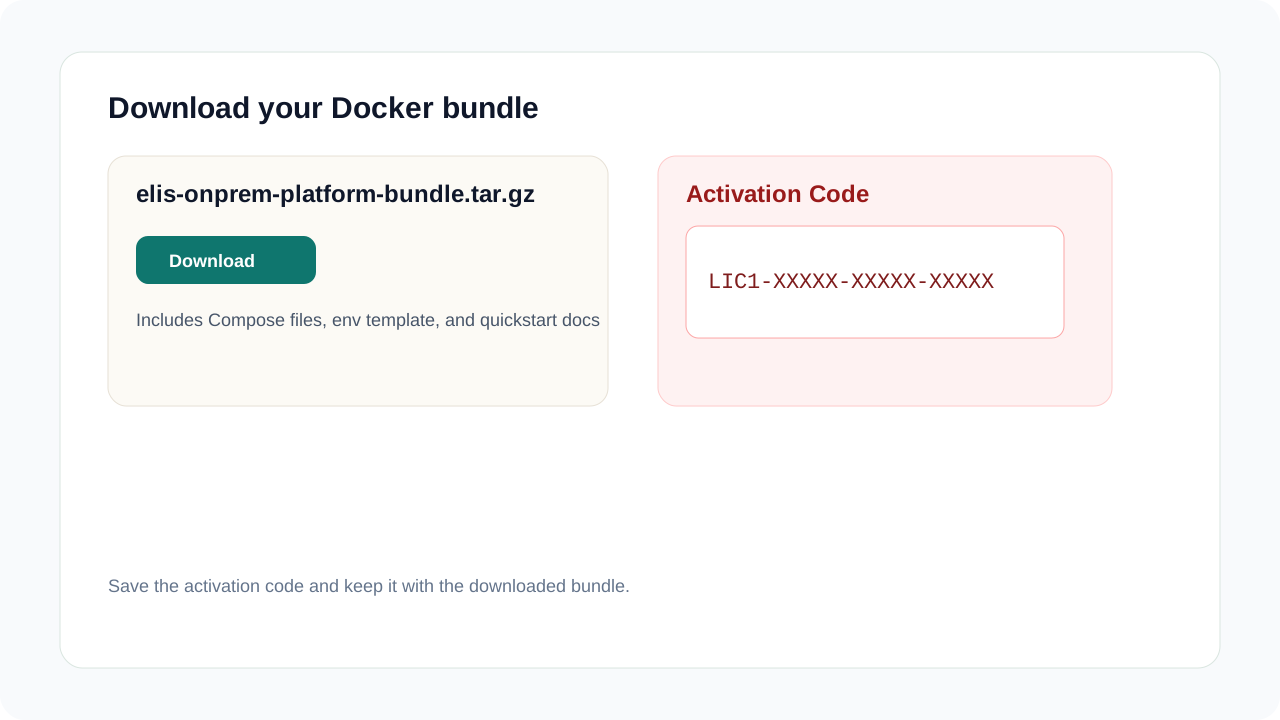
Install the required dependencies
You will need the following dependencies on the target machine:
- Docker Desktop for Windows or macOS
- Docker Engine for Linux
- Docker Compose
- PowerShell for Windows operator commands
- Python 3.10+ only for optional helper scripts
Extract the bundle and run the init helper
Extract the archive and run the included init helper once. It generates unique secrets, writes the required service `.env` files, prints the one-time deployment bootstrap token, and loads the protected images.
powershell -ExecutionPolicy Bypass -File .\scripts\init_onprem_bundle.ps1
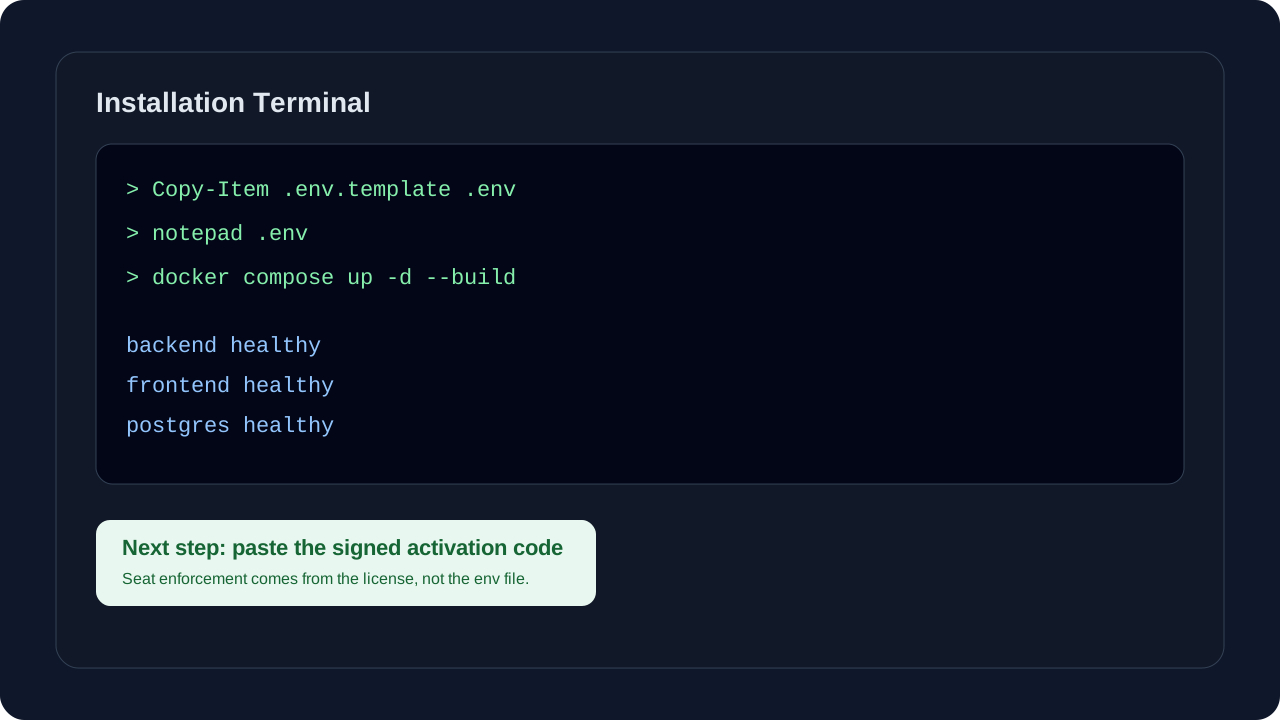
Review the critical settings before first boot
The bundle already sets the onsite posture flags in Compose. Only edit the generated env files when you need custom hostnames, reverse-proxy URLs, customer-managed OAuth, or an external OpenAI-compatible model backend.
- ONSITE=1 and NEXT_PUBLIC_ONSITE=1 must stay enabled.
- JWT_SECRET, DB_ENCRYPTION_KEY, ELIS_KEK_HEX, BROWSER_SERVICE_AUTH_TOKEN, and ONSITE_BOOTSTRAP_TOKEN must be unique.
- APP_BASE_URL, FRONTEND_BASE_URL, INTERNAL_API_URL, and NEXT_PUBLIC_API_URL must stay local to your onsite environment.
- Leave Stripe, Azure, and ONPREM_BUNDLE_BLOB_CONNECTION_STRING empty onsite.
Start the stack and activate the installation
Start the Compose stack, create the first onsite account with the generated bootstrap token, and then generate a request code from the onsite license screen. That first successful bootstrap claim becomes the initial local system admin. Then return to hosted Billing for the same organization, paste the request code or installation ID, and issue the installation-bound activation code.
docker compose up -d
Verify health and sign in
Confirm that the API health endpoint responds successfully and then open the frontend URL for your deployment.
curl http://localhost:8000/health
Upgrade seat capacity later
To add more users later, return to Billing, purchase more seat blocks for the same company, generate a fresh onsite request code, and apply the refreshed activation code. No reinstall is required.